Free billable hours spreadsheet for tracking your time
ClickTime's free billable hours template acts like a simple timesheet calculator, helping you track, manage, and plan how you and your team bill for work while automatically totaling daily and weekly hours for accurate payroll support and billable-hour tracking. Whether you're a consultant tracking client engagements, a law firm managing case hours, or an agency billing across multiple projects, this spreadsheet gives you a clear record of every hour worked and what it's worth.
The template works in Microsoft Excel or Google Sheets. As your hourly rates, projects, employees, or clients change, update the template and save—your billing calculations adjust automatically.
What are billable work hours?
Billable hours are work hours you can charge to a client for services rendered. They represent time spent directly on client work—drafting contracts, designing deliverables, consulting on strategy, or any activity your engagement agreement covers.
Understanding the difference between billable and non-billable hours is essential for accurate invoicing. Billable time generates revenue directly. Non-billable hours—internal meetings, administrative work, business development—don't appear on client invoices but still consume your team's capacity.
Professional services firms live and die by their billable hours. According to industry benchmarks, most firms target 65-80% billable utilization. Every hour that slips through the cracks represents lost revenue.
How to track billable hours effectively
Accurate time tracking is the foundation of healthy billing. Without it, you're guessing at invoices and likely leaving money on the table.
Here's how to track time accurately using our free spreadsheet or any time tracking template:
- Log time as you work: Record hours in real-time rather than reconstructing your week from memory. Even a few days' delay can cost you 10-15% of billable time.
- Use consistent time entries: Standardize how your team describes tasks. "Client call" is more useful for billing than "misc."
- Capture start time and total time: Track when people clock in, their start time, and their clock out times so precise end times are documented. This creates better records and a clear audit trail for invoicing questions or dispute resolution.
- Separate billable and non-billable: Mark each entry clearly so you can analyze where time actually goes versus where it generates revenue.
- Review weekly or monthly: As part of your review process, check weekly totals to catch missing time entries before invoicing. A quick review often recovers hours that would otherwise go unbilled.
Download free billable decimal hours templates for Excel and Google Sheets
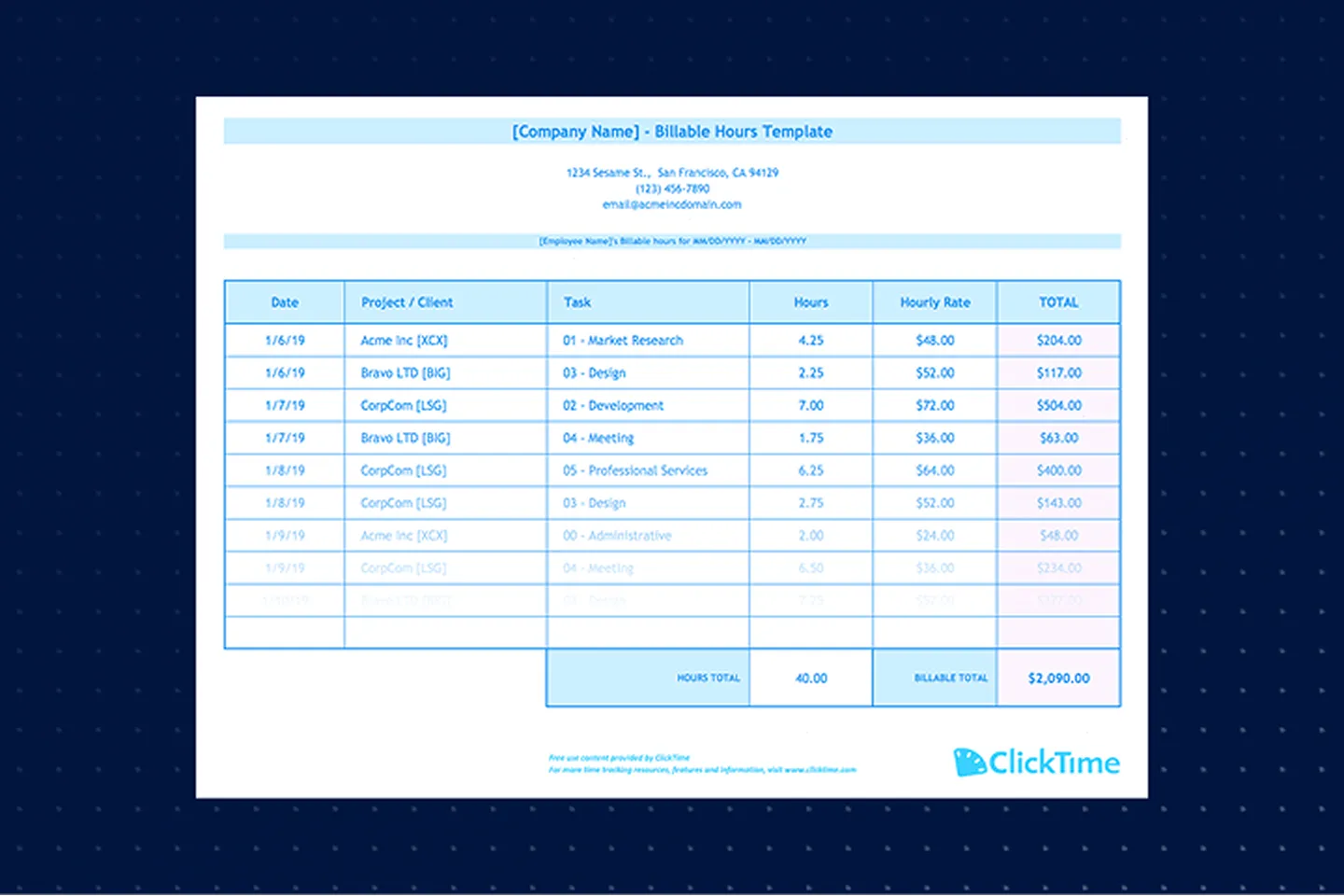
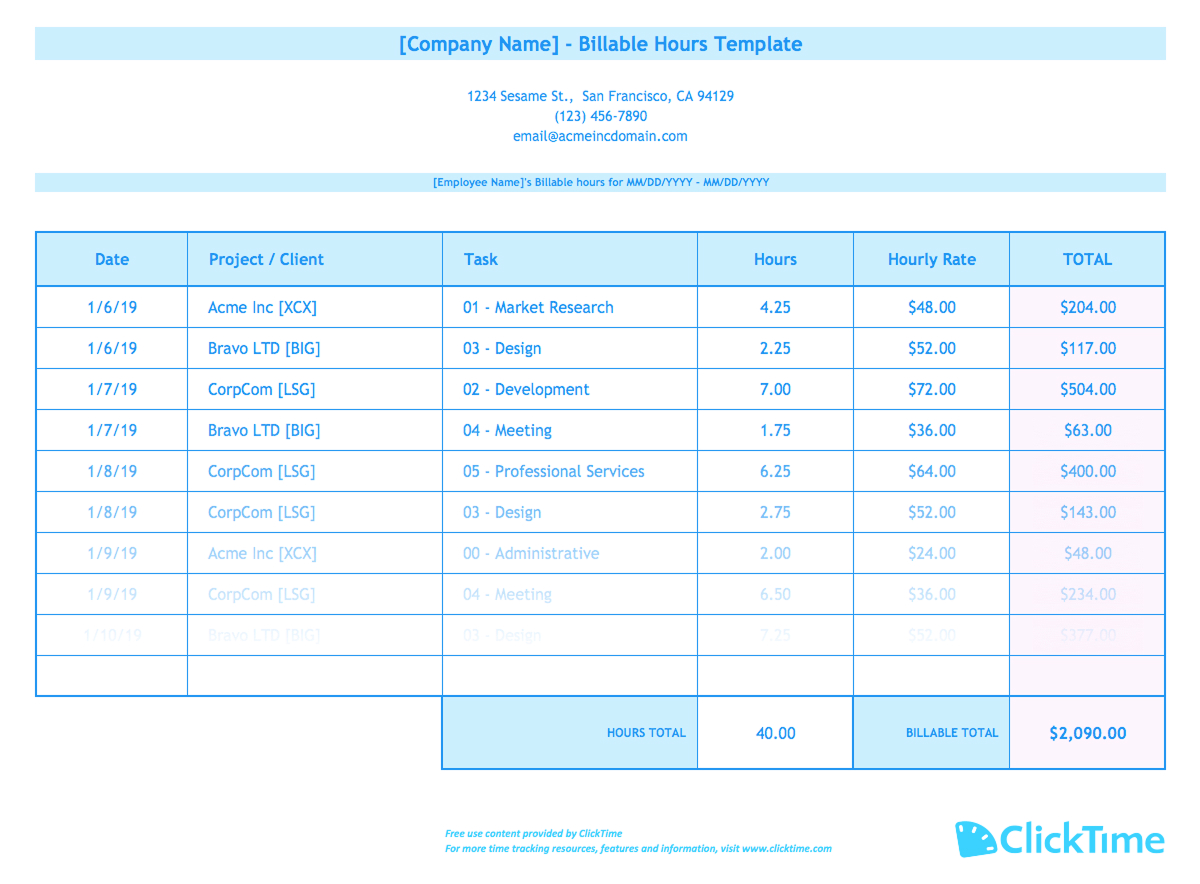
Our free billable hours template gives you everything you need to start tracking time and generating accurate invoices. Download the Excel file or make a copy of the Google Sheets version to get started immediately.
The template includes:
- Employee and project fields for organizing time entries
- Hourly rate columns that calculate billing automatically
- Date tracking for daily, weekly, or monthly tracking periods
- Total hours and total billing summaries
- Space for client and invoice information
- Export options to create a payroll-ready report you can print or save in PDF or CSV formats for compliance audits
Both versions work the same way—choose Microsoft Excel if you prefer desktop software, or Google Sheets if you want cloud access and collaboration features.
How to use the billable hours template
Managing billable hours doesn't have to be complicated. Our free spreadsheet will help you keep track of billable hours, hourly rates, and invoice totals in one place.
Getting started
- Download the billable hours template (Excel or Google Sheets version)
- Open the template in your preferred application
- Rename and save the file for your organization
Setting up the template in Excel or Google Sheets
- Add your organization name at the top
- Update the relevant contact information for invoicing
- Enter the billing period dates for the applicable pay period, such as a weekly setup
- Set up your standard hourly rates for each role or employee, using customized settings for time-calculation preferences where applicable
Using the template to track time
- Enter the employee, project, and client names for each time entry
- Record start and stop times for hours worked, and add breaks or lunch when applicable so the tool can auto-deduct breaks from hours worked.
- Confirm the billing rate for each entry
- Review total work hours and overtime before invoicing or payroll use, including totals automatically calculated based on labor laws.
What is a billable hours chart?
A billable hours chart displays time entries organized by project, client, or time period to give you visibility into billing patterns. Most charts show hours worked alongside hourly rates and total billing amounts.
Charts help you answer questions like:
- Which clients consume the most hours?
- Are certain projects more profitable than others?
- How do actual hours compare to estimates?
- Where is non-billable time accumulating?
Our template includes a basic billable hours chart structure. For more sophisticated analysis—like attorney billable hours charts tracking time in 6-minute increments—consider dedicated time tracking software that generates reports automatically.
How law firms track billable hours
Law firms have specific requirements for billing that general timesheet templates don't always address. Lawyers track their time in 6-minute increments (tenths of an hour) because legal billing demands precision.
An attorney timesheet must capture:
- Client and matter identification
- Detailed task descriptions for invoice transparency
- Time in standard billing increments
- Different billing rates for partners, associates, and paralegals
Daily attorney time tracking templates help lawyers log time throughout the day. Weekly attorney time tracking templates consolidate entries for review. Monthly templates roll everything up for billing cycles. A time card calculator reduces manual errors, keeps compliance-ready records cleaner for legal billing teams, and automated calculations remove human mistakes caused by manual calculations.
Manual time tracking remains common at law firms, but it creates problems. Reconstructing time logs from memory leads to underbilling—attorneys routinely fail to capture every billable minute. Automatic time tracking tools address this by recording work hours as they happen.
Best practices for tracking your billable hours
Whether you use a free spreadsheet or dedicated time management software, these practices will help you track time accurately and capture every billable hour.
- Record time daily: Daily tracking beats weekly reconstruction. You'll capture more actual time and create better time logs for clients who question invoices.
- Be specific in descriptions: "Research" tells clients nothing. "Researched vendor compliance requirements for Q3 audit" justifies the billing.
- Track non-billable time too: Understanding where non-billable hours go reveals opportunities to improve utilization. You can't manage what you don't measure.
- Use consistent categories: Standardize project names and task types across your team. This enables meaningful analysis of where time goes.
- Review before invoicing: Check for missing entries, incorrect rates, and unbilled time. A quick review often recovers significant revenue.
- Consider time tracking apps: A time tracker or time tracking app lets you log employee time quickly from anywhere, reducing friction that leads to forgotten entries. Automated time tracking can recover about 4.5 hours per week in missed or unlogged time.
Manual time tracking vs. billable hours tracking software
A free billable hours template works well for individuals and small teams. But as your organization grows, manual time tracking creates problems:
- Lost hours: How many billable hours slip away unnoticed when tracking happens days later? Automated tracking can recover an average of 4.5 hours weekly.
- Consolidation headaches: Collecting individual spreadsheets and reconciling them for invoicing takes time—non-billable time.
- No real-time visibility: You can't see project status or budget health until someone updates and shares their spreadsheet.
- Error risk: Manual data entry introduces mistakes that affect billing accuracy, while more accurate payroll processing reduces the chances of employee overpayment.
Efficient time tracking with dedicated software solves these problems. Features like automatic time trackers, mobile time entry, and integrated invoicing help teams capture billable time accurately while reducing administrative burden.
Track billable hours with ClickTime
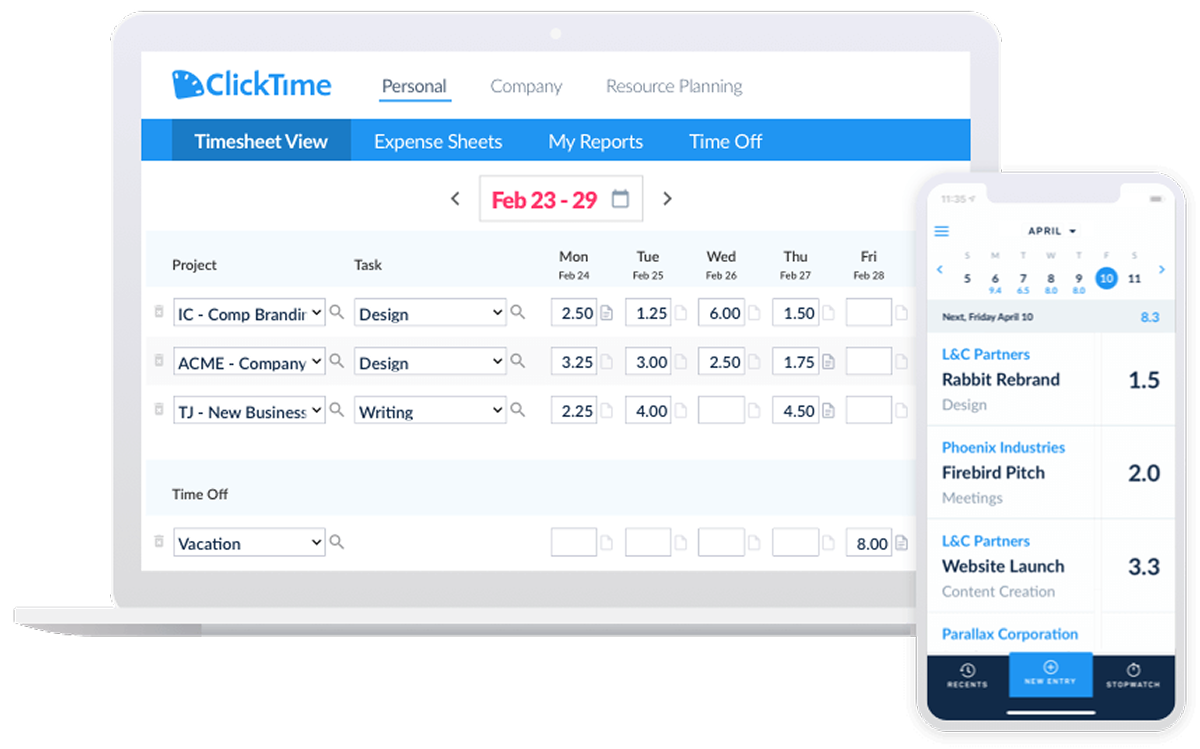
ClickTime's online timesheets make it straightforward to track employee hours, manage project budgets, and improve billability. Our time tracking features include:
- Flexible time entry: Log time via web, mobile app, or a simple time clock interface to reduce logging errors
- Project budgets: See budget health in real time, not after the project ends
- Dozens of reports: Analyze billable vs. non-billable hours, utilization rates, and project profitability
- Integrations: Connect with your existing payroll, accounting, time cards, and invoicing software
- Approval workflows: Ensure accurate time logs before they hit billing with compliance-ready records that help avoid labor-related penalties
Unlike spreadsheet templates, ClickTime gives you finance-ready data for professional services billing—accurate hours that flow directly into invoices and financial reports.
"I can't overstate how important ClickTime is to our business. It has made us more productive, and better able to focus on meaningful work for our clients. ClickTime saves our team hundreds of non-billable hours a week—and nearly $200,000 a year."
Annemarie Anaya, Accountant Eastwick Communications
Get started with accurate time tracking
Download our free billable hours template to start tracking time today. As your needs expand, a work hours calculator or free time card calculator can help growing teams move toward more compliant tracking and support labor-law compliance. When you're ready for more—real-time project visibility, automatic calculations, and billable hours tracking that scales with your team—start a free trial of ClickTime.